Do more with TallOrder
Everything you need to run your business – in one smart system.
Automatic Sales Posting
Send daily sales summaries or detailed invoices directly into Xero.
Payment Reconciliation
Keep cash, card and EFT payments aligned with your accounting.

Supplier Synchronisation
Sync supplier invoices and credit notes without duplicate capturing.

Department Reporting
Allocate sales using tracking categories and locations.

Live Financial Visibility
Access accurate financial information without manual updates.

Faster Month-End
Spend less time on bookkeeping and more time running your business.
What TallOrder Offers…
Empower your business with a POS that meets works with the software you already use.

Sync Sales
Automatically sync sales, payments and inventory with Xero.

Data Syncing
Reduce manual bookkeeping with real-time data synchronisation.
Supplier Invoice Syncing
Sync supplier invoices, credit notes and customer records.
Flexible Reporting
Detailed or summary accounting postings for flexible reporting.
One Device. Unlimited Possibilities.

Restaurants & Cafés
Automatically post daily sales without manual exports.

Retail Businesses
Track inventory and accounting from one connected platform.

Wine Estates
Connect cellar door, restaurant and online sales into Xero.
Hotels & Lodges
Manage multiple revenue streams with simplified accounting.

Multi-Location Businesses
Consolidate reporting across every location with ease.
Everything Your Business Needs
On One Platform.
Everything you need to sell, manage, and grow your business—powered by one connected platform.

Automatic Accounting

Real-Time Financials

Smarter Inventory
Simpler Reconciliation
- Go to mystock.tallorder.app
- Login in with your login credentials (email address and password)
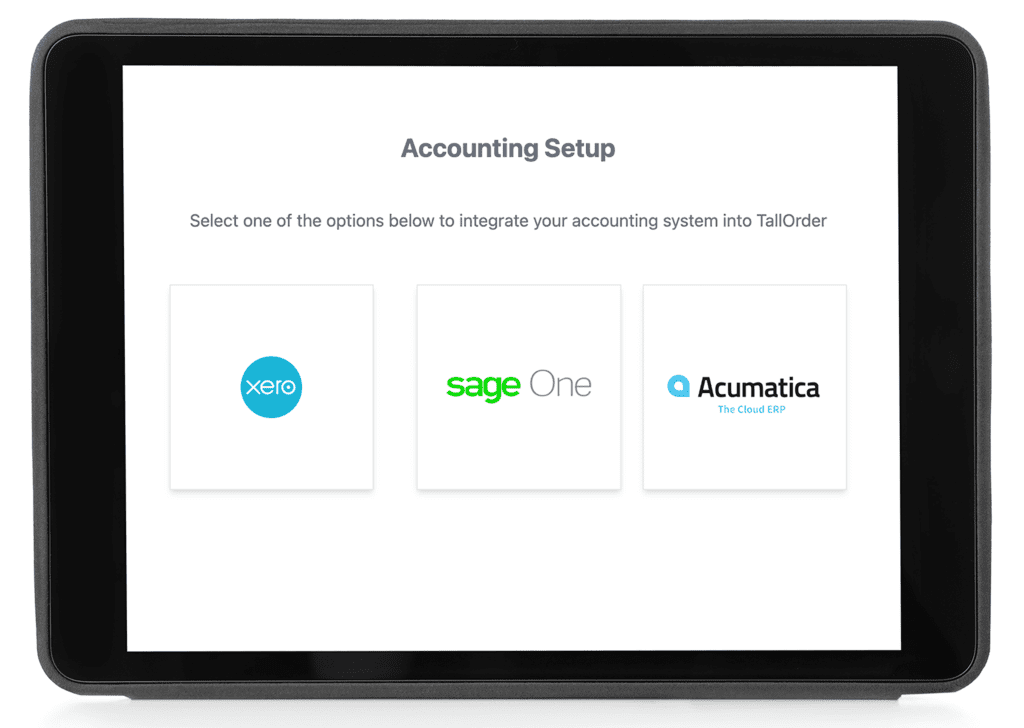
- On the left hand side scroll to settings, apps, accounting
- You can then click on the Xero button to start your Xero integration.
- You will be redirected to the Xero Accounting webpage and asked to verify your Xero Integration by signing into to your Xero Account.
Connecting to Xero
- Choose the correct company from your drop down list if you have more than one Company you manage within Xero
- Enter your Xero username and password then click the “Log in” button
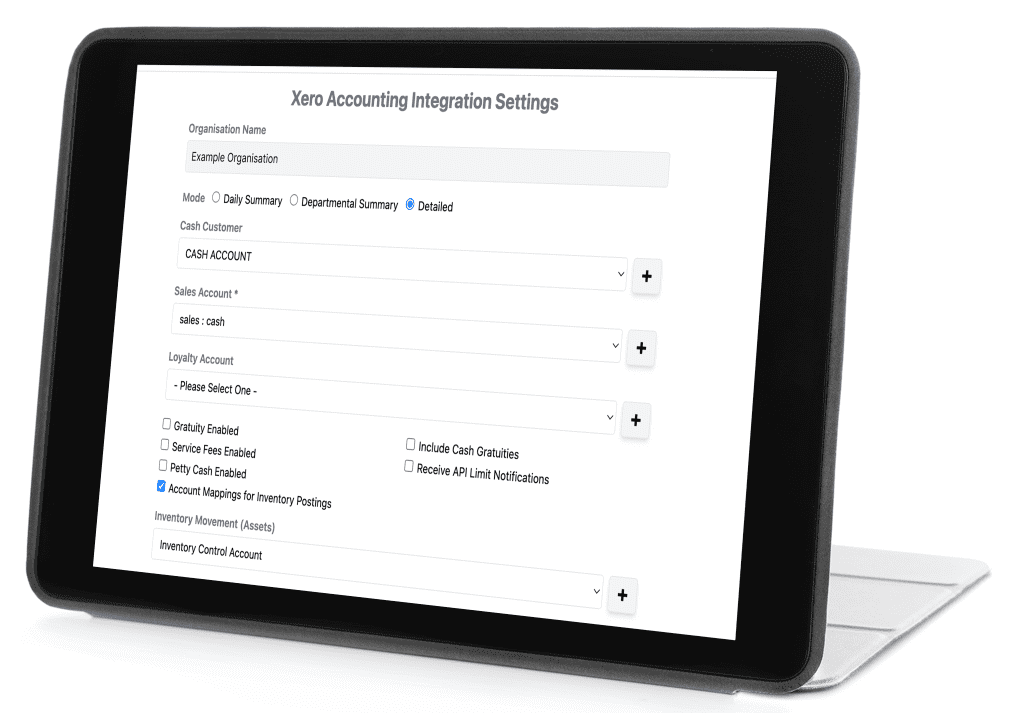
- After auth on the Xero website you will be redirected to accounting set up page where you should set your configuration/settings for the Xero integration
- From within Xero
- Go to My Xero → Connected Apps
- Remove/revoke access to myStock.
- This immediately invalidates the OAuth tokens we hold and prevents further API access.
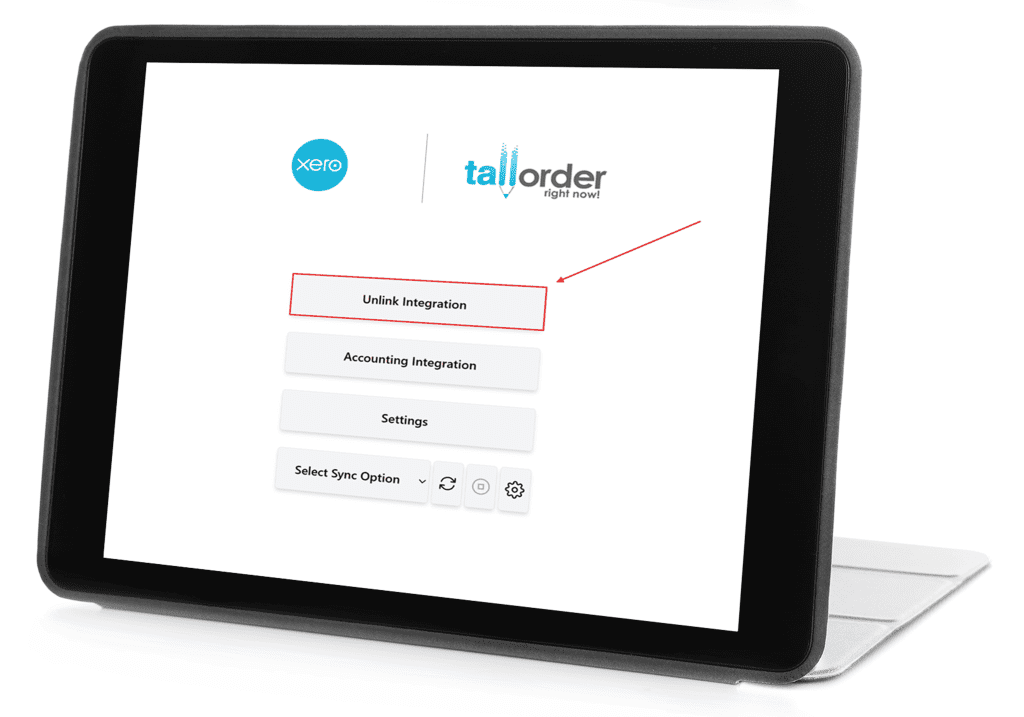
From within myStock
- Go to myStock → Integrations
- Remove/revoke access to myStock
- This immediately invalidates the OAuth tokens we hold and prevents further API access.