Why connect TallOrder POS to Xero

The benefits of connecting TallOrder POS with Xero include:

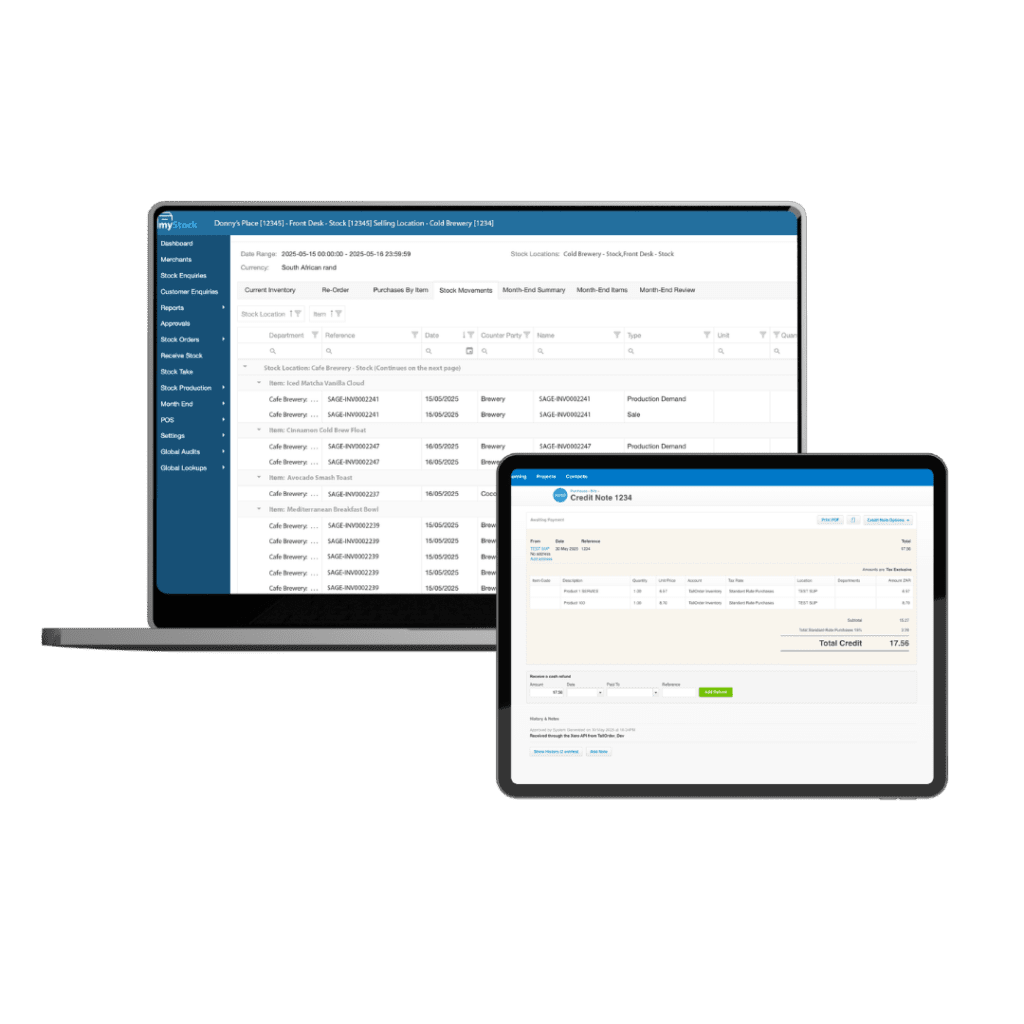
2-Way Syncing with MyStock 4 Accounting

Connect TallOrder POS and MyStock 4 Accounting to Xero to securely synchronise sales transactions, inventory movements, customer records, and supplier invoices directly into your Xero accounting system.

Accurate, Automated Data Updates

Approved sales and inventory transactions are automatically synchronised to Xero in real time, reducing manual data entry while keeping your accounting records accurate.

Detailed Summary Mode Reporting

Track daily sales, staff performance, and profit margins to make more informed, data-driven business decisions.

Built-In Debtor Management Tools

Set credit limits and payment terms so customers can buy on credit—giving them another way to pay.

What Data is Synced?

Contacts

Items

Tax Rates

Accounts

Payments

Supplier Invoices

Credit Notes

Tracking Categories

Supplier Returns

Bank Transactions

Customer Invoices

About Xero

Xero is world-leading online accounting software built for small business.

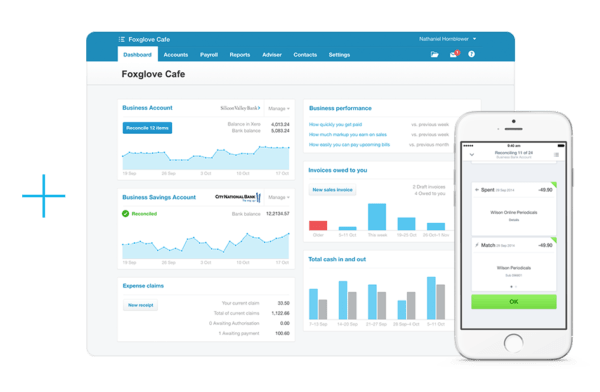
Get a real-time view of your cashflow

Log in anytime, anywhere on your Mac, PC, tablet or phone and see up-to-date financials.

Get paid faster with online invoicing

Send online invoices to your customers – and get updated when they’re opened.

Run your business on the go

Use our mobile app to reconcile, send invoices, or create expense claims – from anywhere.

Reconcile in seconds

Xero imports and categorises your latest bank transactions. Just click ok to reconcile.
alt=""
  • On the POS sign in screen, enter the relevant credentials (this includes your email address and password).
  •  Under Advanced, please select the ‘Override as Master POS’.
  • Next, click ‘Sign in’ to proceed.
  • Once you have signed in, you will arrive at the ‘Select a Store’ screen.
  • Select your store and wait for the staff sign in screen to appear. Enter your unique 4 digit code (this would’ve been provided to you during TallOrder admin setup).
  • You will now arrive at the POS home screen which means you are ready to start a shift.
  • Watch our YouTube Tutorial: https://youtu.be/DPmn5qsNqxI
alt=""
  • Go to admin.tallorder.mobi
  • Login in with your login credentials (email address and password)
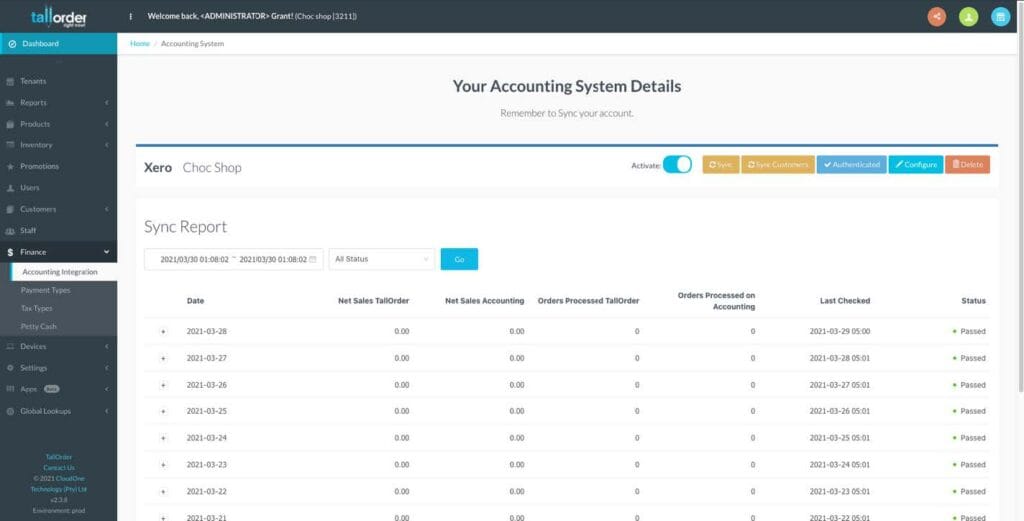
  • On the left hand side scroll to Finance, then click on accounting integration
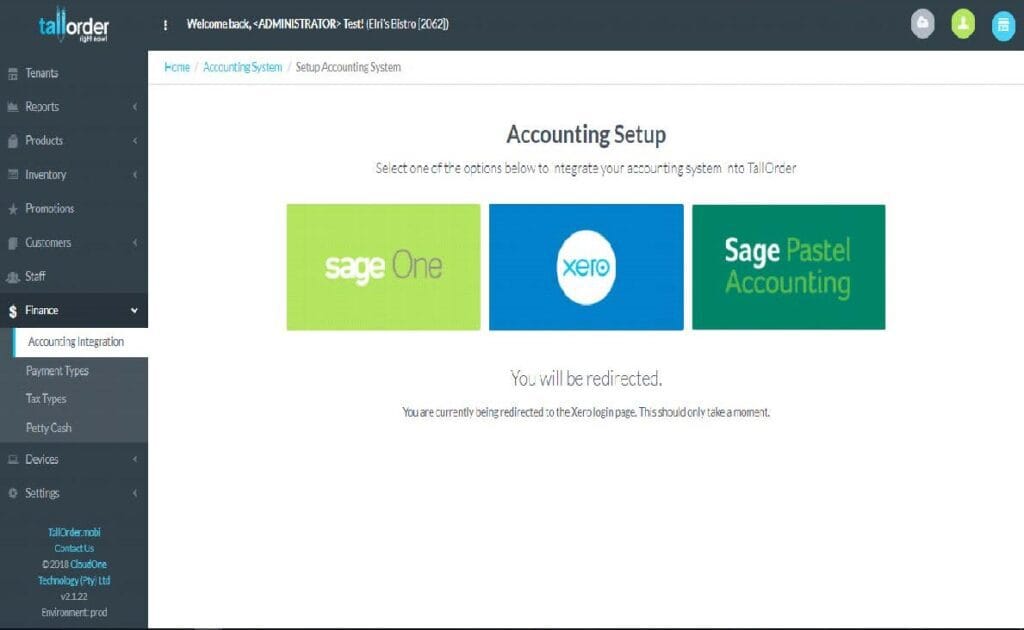
  • You can then click on the Xero button to start your Xero integration.
  • You will be redirected to the Xero Accounting webpage and asked to verify your Xero Integration by signing into to your Xero Account.
alt=""
  • Choose the correct company from your drop down list if you have more than one Company you manage within Xero
  • Enter your Xero username and password then click the “Log in” button
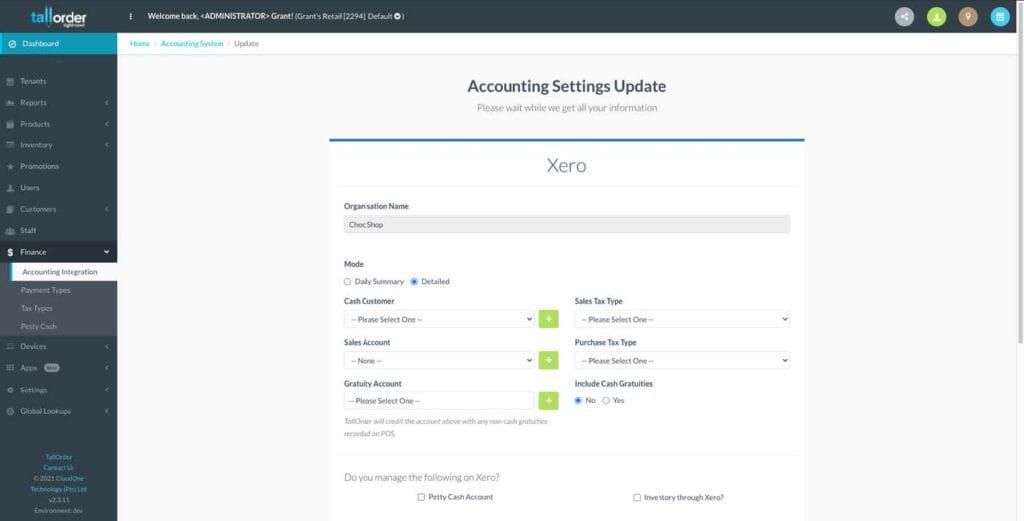
  • After login on the Xero website you will be redirected to TallOrder Admin where you should set your configuration/settings for the Xero integration
alt=""

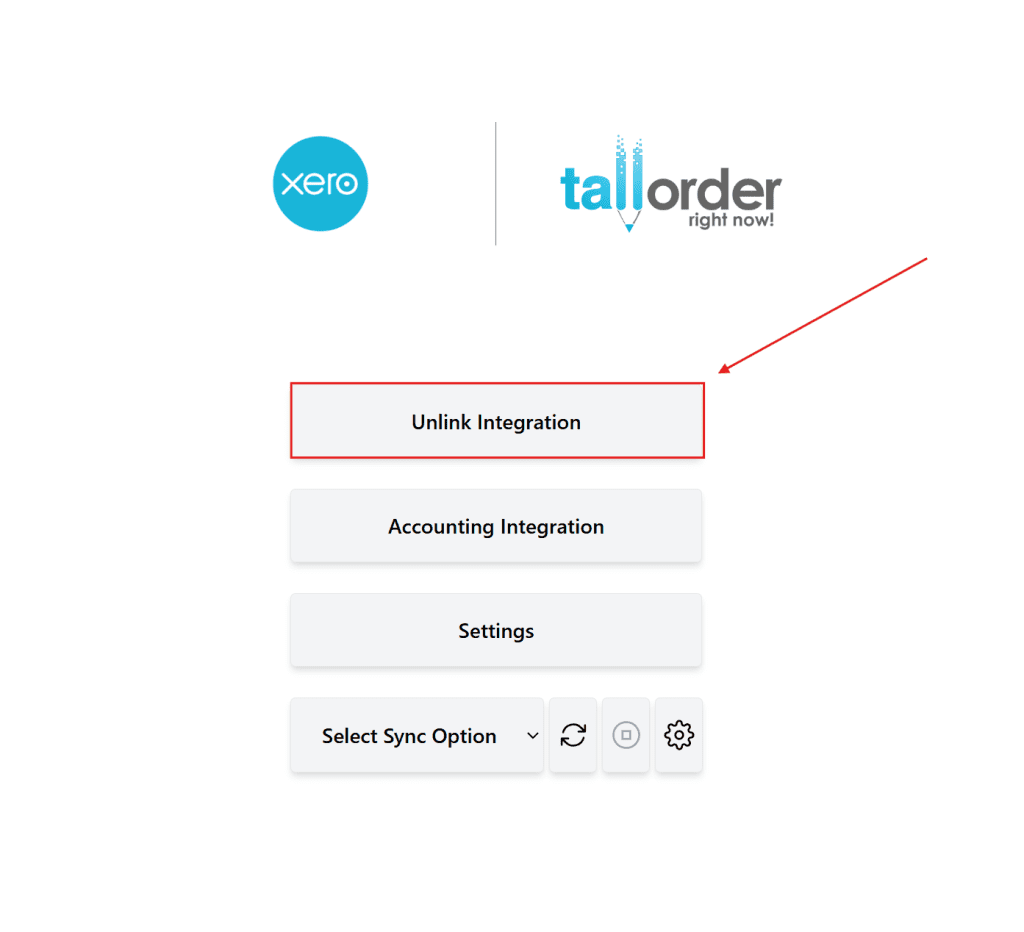
From within Xero

  • Go to My Xero → Connected Apps
  • Remove/revoke access to myStock.
  • This immediately invalidates the OAuth tokens we hold and prevents further API access.

From within myStock

  • Go to myStock → Integrations
  • Remove/revoke access to myStock
  • This immediately invalidates the OAuth tokens we hold and prevents further API access.

Need assistance? Click here to get in touch with our dedicated Support Staff.